Nothing ruins a clutch multiplayer moment faster than a sudden spike in latency. Whether you are grinding ranked matches in Valorant, dropping into Call of Duty: Warzone, or trying to secure a victory royale in Fortnite, understanding how to lower ping in games is the ultimate key to competitive survival. High ping doesn’t just cause annoying stuttering; it directly impacts your shot registration, giving opponents with a crisper connection a massive advantage.
If you are tired of watching your character teleport across the screen, here is a practical, step-by-step breakdown to optimize your home network and crush your latency for good.
Read Also-Summer Gardening 2026: Heatwave Survival and New Backyard Trends
Technical Solutions: How to Lower Ping in Games Instantly
Before you completely blame your Internet Service Provider (ISP), there are several crucial adjustments you can make right from your gaming desk to stabilize your packet delivery.
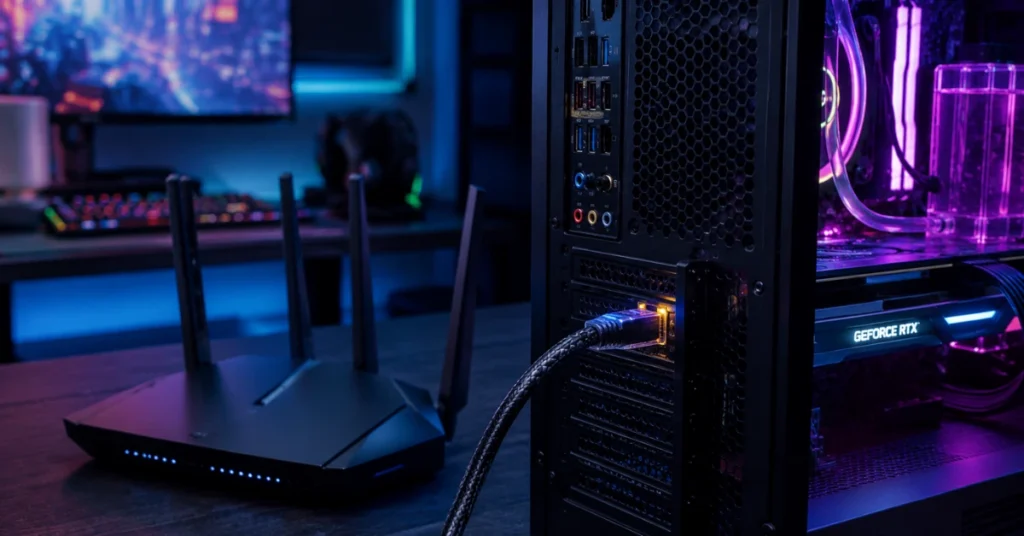
1. Ditch the Wi-Fi and Go Hardwired
While modern mesh Wi-Fi networks are incredible for streaming movies, they are notoriously terrible for competitive gaming. Wireless signals are highly vulnerable to local interference from household appliances, thick walls, and neighboring networks. Swapping to a dedicated Cat6 or Cat7 Ethernet cable creates a direct, uninhibited pathway from your console or PC straight to your router, instantly slashing your jitter and stabilizing your connection.
2. Kill Bandwidth-Hogging Background Applications
Your gaming traffic has to compete with every other piece of data moving through your machine. Before launching your favorite title, pull up your Task Manager (on Windows) or Activity Monitor (on Mac) and close out hidden resource hogs. Cloud backup services, active torrent clients, and background launchers like Steam or Epic Games downloading hidden updates can quietly saturate your upload bandwidth, driving your ping into the triple digits.
Read Also-Viral Pickup Truck Moose Bear Encounter: Maine Couple Rescues Calf
3. Clean Up Your DNS Cache
Over time, your operating system accumulates outdated network routing data that can slow down your connection to game servers. Flushing your Domain Name System (DNS) cache clears out this digital clutter.
- Open your command prompt as an administrator.
- Type ipconfig /flushdns and hit enter.
- This forces your machine to establish a clean, optimized path to the web.
Router Optimizations and Server Selection Strategy
If a wired connection doesn’t completely solve the issue, the bottleneck might be sitting directly inside your home router’s configuration panel.
Enable Quality of Service (QoS) Settings
Most modern gaming routers feature a setting called Quality of Service (QoS). When enabled, this feature allows you to explicitly tell your router to prioritize gaming packets over all other household traffic. This means if someone in the next room starts streaming a 4K movie, your router will automatically throttle their data stream slightly to ensure your gaming connection remains entirely uninterrupted.
Manually Choose the Right Matchmaking Region
It sounds incredibly simple, but many modern games utilize automatic matchmaking that occasionally throws you into the wrong regional server just to find a quick match. Always dive into your game’s network settings menu and manually lock your region. If you live on the East Coast, explicitly select “US East” instead of leaving it on “Auto.” Forcing the game to connect to geographically closer data hubs is the fastest way to shave off crucial milliseconds from your latency.
Read Also- New Air Force One: High-Tech Flying Oval Office Faces Fresh Timeline Scrutiny

Diana Luci is a U.S.-based Latest and financial news writer covering Social Security, IRS tax updates, SNAP benefits, Medicare, and government assistance programs. She focuses on simplifying complex financial and policy topics into clear, easy-to-understand information for everyday readers.